

Tavoa AI
Tavoa AI brings Seedance, Kling, Veo, and other video and image models into one credit-based workspace, so creators can test outputs without juggling apps.
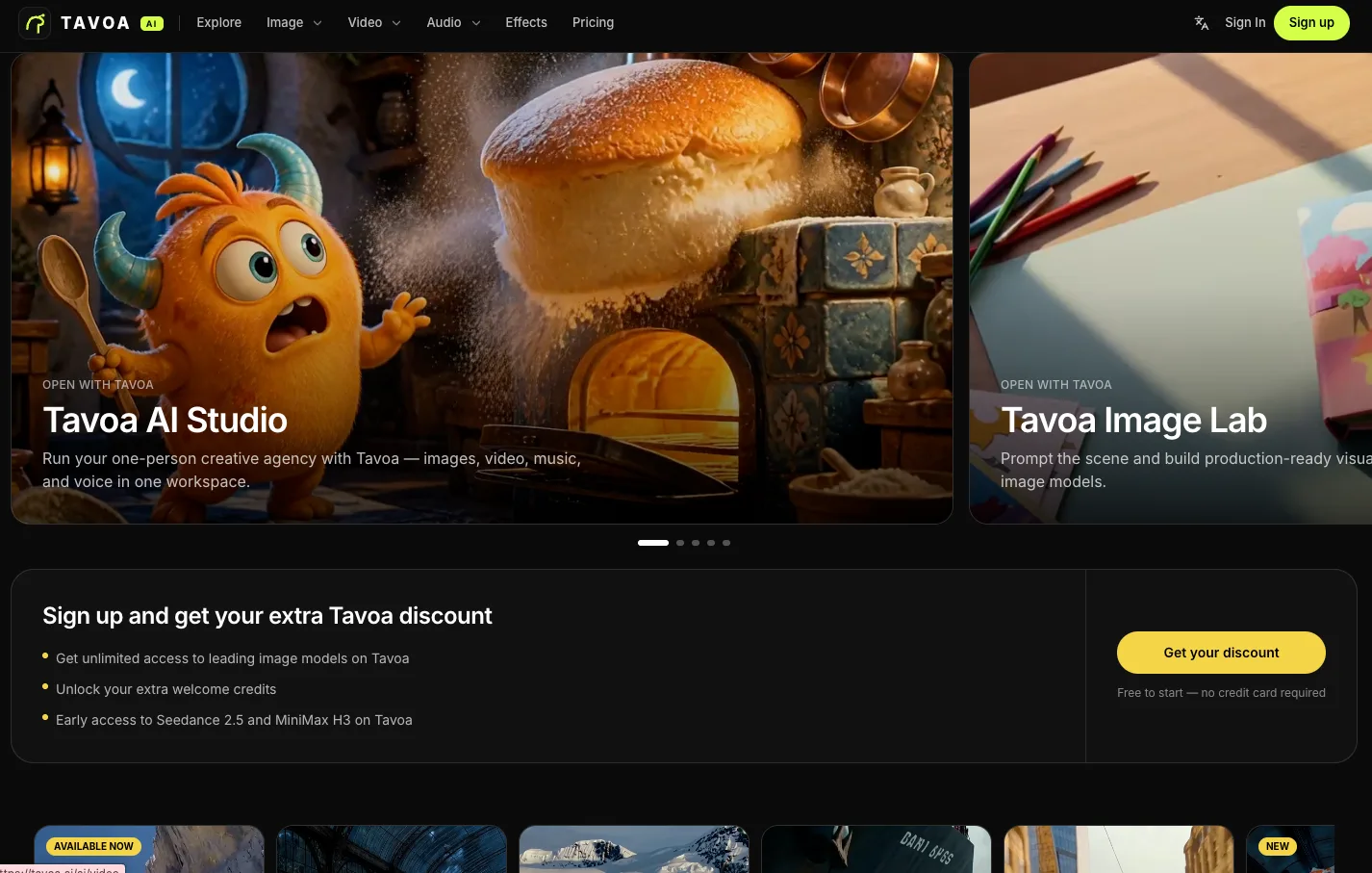
TL;DR: Tavoa AI is a multi-model generative platform that puts third-party video, image, and audio models (Seedance, Kling, Veo, Wan, Flux, GPT Image, and others) behind one interface and one credit balance. It saves you from holding separate subscriptions to several model providers just to see which one handles a given shot best. It suits solo creators, short-form video producers, and small marketing teams who make a lot of visual content and want to switch models freely.
What is Tavoa AI & How Does It Work?
Tavoa AI is an aggregator, not a model lab. It doesn't train its own flagship model. Instead it offers a long list of leading third-party generators: video models such as Seedance 2.5, Kling 3.0, Veo 3.1, Hailuo 2.3, Wan 2.7, and Grok Imagine, plus image models like Flux 2, Seedream 5, GPT Image 2, and Nano Banana. You choose a model, write a prompt or upload a reference image, and Tavoa sends the job to that model and takes credits from your account. Credits are the shared currency, so one subscription covers every model in the catalog.
On top of the raw models, Tavoa adds task-specific tools. Image Lab handles text-to-image work. Cinema Studio and the beta Tavoa Studio are for multi-shot productions where you want control over each stage. Faceless Studio builds a faceless content channel from a single topic. Smaller utilities cover lipsync, talking avatars, product placement, inpainting, draw-to-video, and upscaling. There's also a library of viral presets (camera effects like "Earth Zoom" and "Bullet time"), an automation agent called Supercomputer, and an MCP/CLI integration that lets Claude drive Tavoa generations. A public community feed shows other creators' projects. Sharing your own work there is optional and can qualify you for grant credits.
4 Core Use Cases & Practical Scenarios
-
Model shoot-outs for a single shot: You need a 5-second hero clip and don't know which model handles your subject's motion best. On Tavoa you run the same prompt and reference image through Seedance, Kling, and Veo one after another, without switching accounts. You end up with three comparable takes in one library, and you only had to set up one account and billing relationship instead of three.
-
Faceless short-form channel production: A creator wants a steady stream of narrated explainer shorts but doesn't want to appear on camera. Faceless Studio starts from one topic and generates the channel's content pipeline. What you get is a repeatable workflow that replaces hand-assembling visuals, voice, and edits for every upload.
-
E-commerce product visuals: A small brand needs lifestyle images and short ads without booking a photo shoot. You'd upload a product shot, use Product Placement or Banana Placement to drop it into generated scenes, then animate the best frames with an image-to-video model. One source photo can become a set of ad variations in an afternoon.
-
Trend-driven social content: A social media manager wants to jump on a popular visual effect while it's still trending. Viral presets like "Bullet time," "Ink Riot," or "Earth Zoom" apply a pre-built motion template to your own image, so there's no prompt engineering. You get an on-trend clip in minutes, not a manual After Effects job.
Getting Started: Step-by-Step Workflow
- Create an account. Sign up from the homepage. Tavoa says it's free to start and doesn't ask for a credit card, and new accounts get welcome credits.
- Pick a tool or model. Go to Image, Video, or Audio in the top menu, or open a preset from the presets gallery. If you're new, a preset is the fastest way to see results without writing a prompt.
- Add your prompt and references. Enter a text description, upload a reference image if the tool supports it, and set any options the model offers (such as camera motion or aspect ratio). Before you scale up, check how many credits the generation will cost.
- Generate, review, and download. Your outputs land in your Library, where you can regenerate with another model, upscale, or download. Paid plans include watermark-free downloads and commercial use.
Tavoa AI Pros & Cons: An Honest Look
Pros:
- Broad model catalog under one bill: Different models are better at different things, such as realistic motion, stylized animation, or consistent characters. Being able to try each one with a single balance removes the cost and hassle of keeping several separate subscriptions.
- Task-specific tools beyond raw prompting: Lipsync, talking avatars, product placement, inpainting, and upscaling sit next to the generators. That cuts down how often you export assets into separate editing apps between steps.
- Low barrier for experimentation: Presets, a public project feed, and Tavoa Academy tutorials help newcomers learn by example. The optional public-build program with grant credits is a nice extra for creators who don't mind sharing their work.
Cons:
- Credit costs are hard to predict: The pricing page lists credit totals per plan but not what each model costs per generation. Heavy video users may burn through credits faster than expected, and plan credits expire after a year.
- Sprawling, overlapping product lineup: Studio, Cinema Studio, Canvas, Supercomputer, Faceless Studio, and Marketing Studio overlap enough that it isn't obvious where to start. Tavoa Studio is also still labeled beta, so expect rough edges in the more advanced production tools.
Who Should Use Tavoa AI (And Who Shouldn't)?
- Best For: (1) Solo short-form video creators and faceless channel operators who make lots of clips and want to pick the best model for each shot. (2) Small marketing or e-commerce teams that need product visuals and ad variants but can't justify separate subscriptions to several AI video vendors.
- Skip If: (1) You've already settled on one model and use it heavily. Going straight to that provider may give you more direct access to its newest features and settings. (2) You need traditional timeline editing, color grading, or collaborative review, which a dedicated video editor handles better.
Tavoa AI vs. Top Alternatives
| Tavoa AI | Higgsfield AI | Runway | |
|---|---|---|---|
| Primary Focus | Multi-model aggregator for video, image, and audio, with presets and production tools | Multi-model aggregator focused on cinematic camera presets and social video | Own in-house video models plus editing and creative tools |
| Ease of Use | Easy for presets; the wide product lineup takes time to learn | Easy, built around preset-driven workflows | Moderate; polished interface with deeper pro controls |
| Pricing Model | Credit-based subscriptions (monthly or yearly) plus credit packs | Credit-based subscriptions | Credit-based subscriptions with a limited free tier |
| Best For | Creators who want to compare many third-party models in one place | Social creators chasing trending camera effects | Filmmakers who want one vendor's models and editing tools combined |
Tavoa and Higgsfield take a very similar aggregator-plus-presets approach, so the choice mostly comes down to which models each one carries and the effective cost per credit for your typical generation. Runway makes more sense if you'd rather have a single vendor's own models tied closely into its editing tools than a wide menu of third-party options.
Tavoa AI Pricing & Value for Money
The pricing page lists three subscription tiers, with up to 18% off for annual billing. Lite is $9.90/month, or $8.90/month billed yearly ($106.80/year), and includes 24,000 credits. Pro is $19.90/month, or $16.90/month billed yearly ($202.80/year), with 57,600 credits. Ultra is $39.90/month, or $32.90/month billed yearly ($394.80/year), with 120,000 credits. All three plans include text-to-video and image-to-video, access to multiple video models, watermark-free downloads, and commercial use. Credits are listed as valid for one year. Separate credit packs are offered if you need a top-up. Team seats and enterprise features are mentioned, but no enterprise prices are shown.
For indie makers, the entry price is low compared with keeping separate subscriptions to several video model providers, and annual billing lowers it further. The real value depends on per-model credit costs, which the pricing page doesn't list. Before committing to a yearly plan, run a few test generations with your preferred models on the free welcome credits so you can estimate how far a plan's credits will actually go.
Tavoa AI Frequently Asked Questions (FAQ)
1. Is Tavoa AI free to use, or is there a free trial?
Tavoa says it's free to start and doesn't require a credit card, and new sign-ups get welcome credits. Ongoing use runs on paid credit-based plans: Lite, Pro, and Ultra. Watermark-free downloads and commercial use are listed as paid-plan features.
2. How does Tavoa AI compare to Higgsfield AI?
Both platforms combine third-party video and image models with ready-made effect presets under a credit system. Tavoa adds tools like Faceless Studio, product placement, and an MCP/CLI integration for Claude. The better choice depends on which models you use most and what each generation costs in credits on each platform.
3. Is Tavoa AI suitable for beginners?
Yes. Viral presets let you get a result by uploading an image instead of writing a detailed prompt, and Tavoa Academy offers tutorials. The wide range of studios and tools can feel like a lot at first, so beginners should start with one preset or one model before trying the advanced production tools.
4. What are the best alternatives to Tavoa AI?
Higgsfield AI is the closest match as another multi-model platform with presets. Runway suits creators who want in-house models together with editing tools, while Krea AI is a strong option for image-first workflows. If you rely on one model heavily, going straight to that provider, such as Kling or Google's Veo, may also be worth comparing.
Help more people discover your product.
Submit to SubmitoMore to discover
Happy Wan
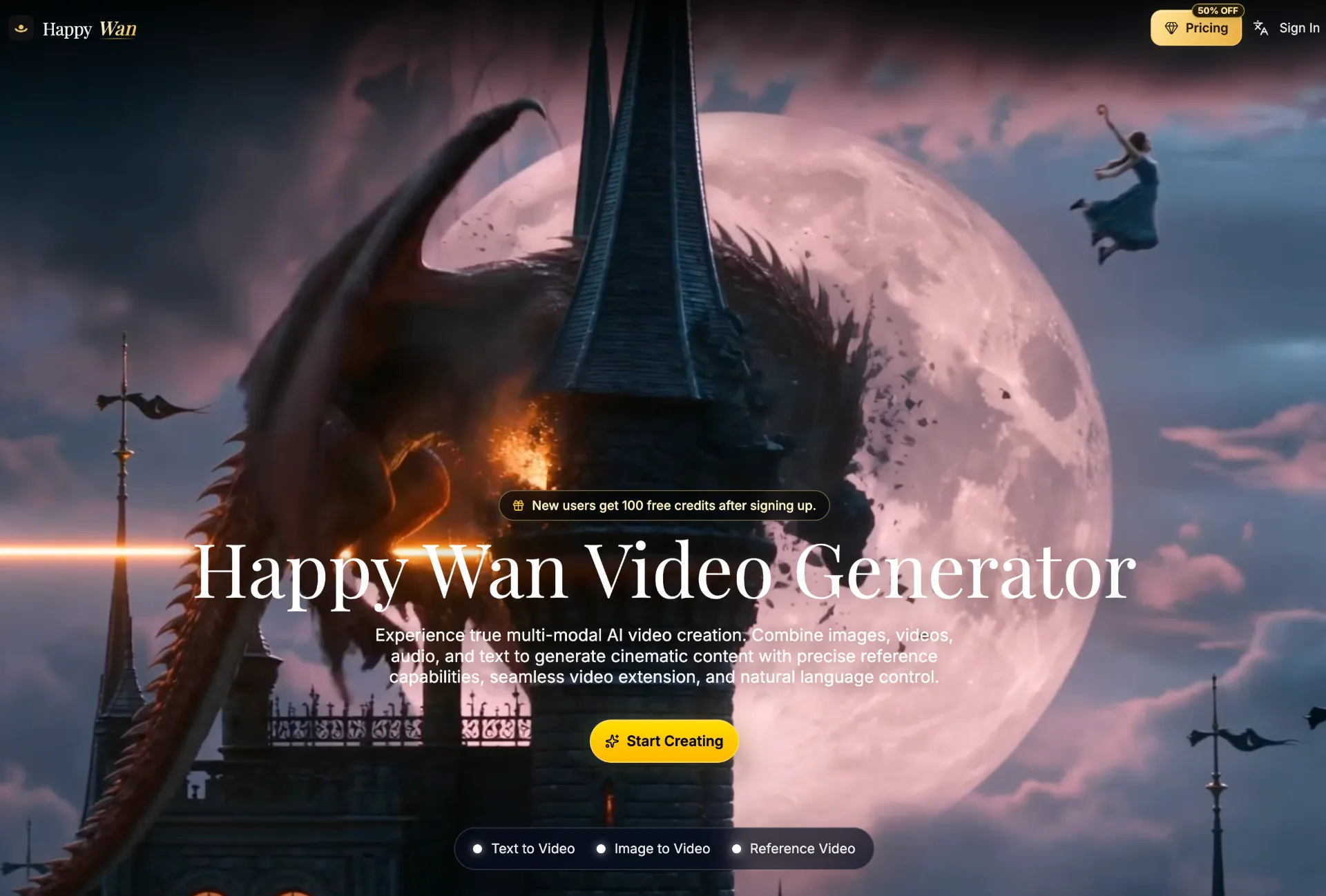
Happy Wan turns text, images, clips, and audio into videos up to 30 seconds, with @ tag references to keep characters consistent across shots.
AI Attractiveness Test
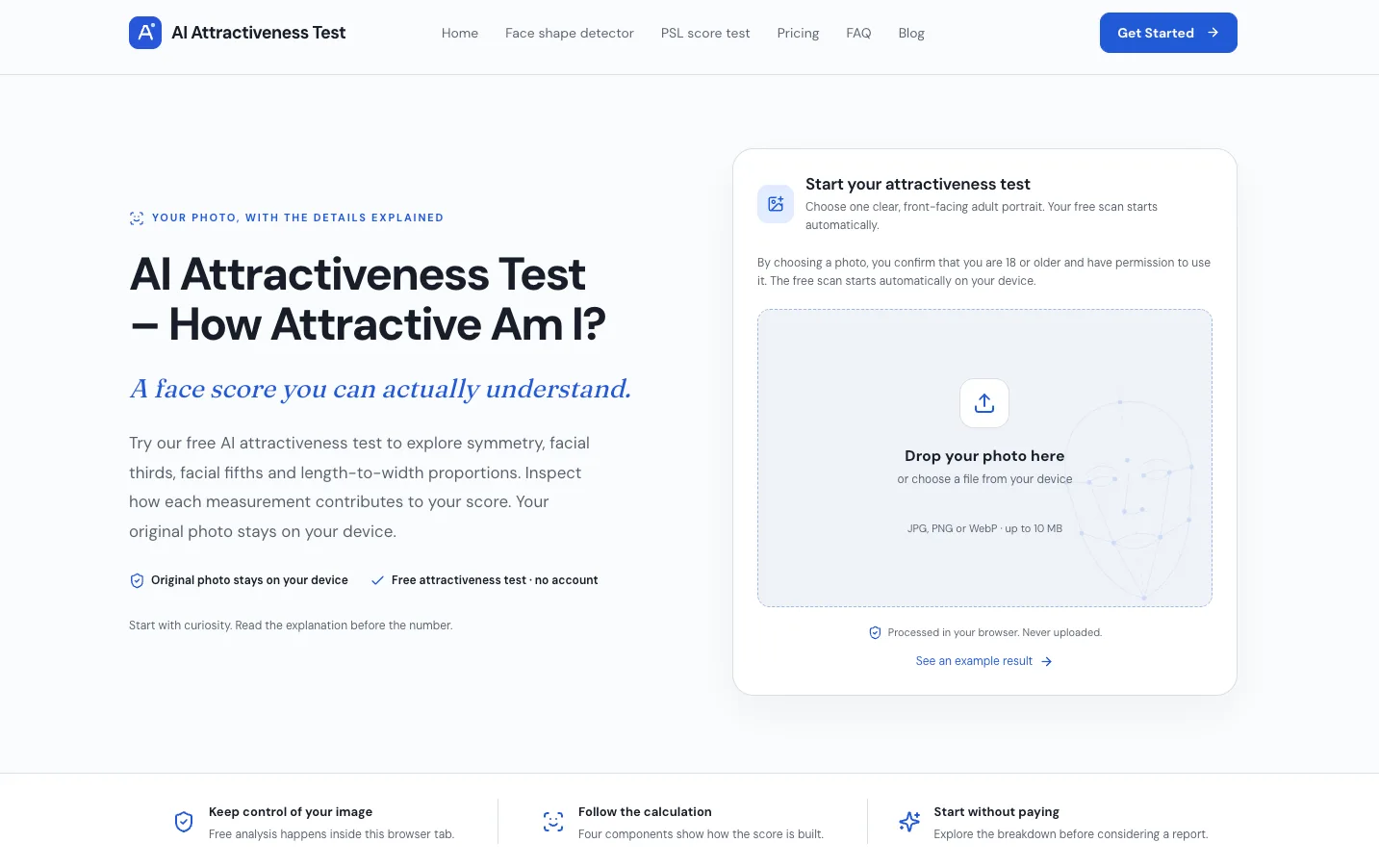
Analyze facial symmetry, thirds, fifths, and proportions directly in your browser. Your photo stays on your device with a transparent 0–100 harmony breakdown.
Viral Video AI
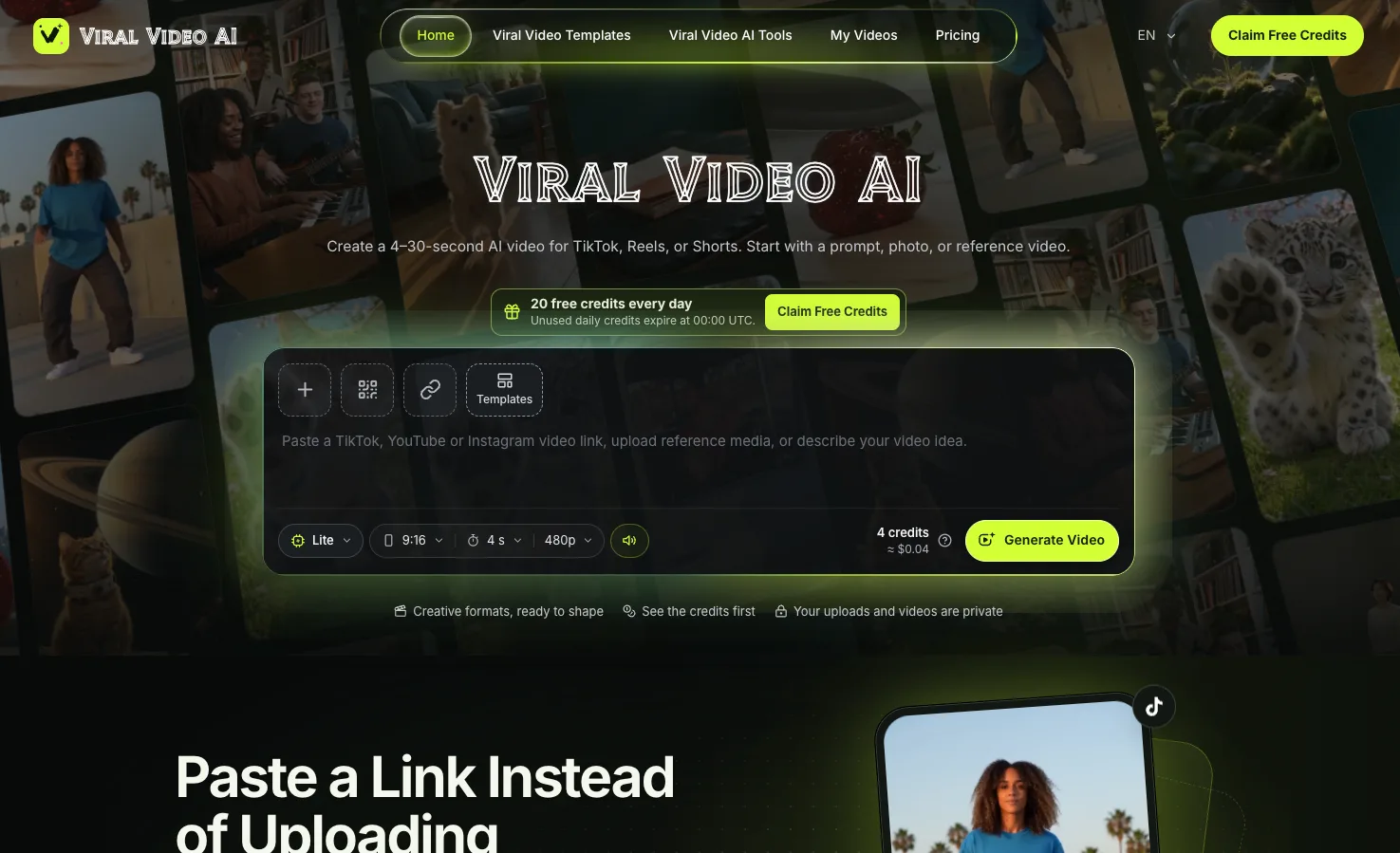
Viral Video AI helps creators, social media teams and small businesses make short videos for TikTok, Instagram Reels and YouTube Shorts. Paste a public TikTok, YouTube or Instagram video link, preview it as a reference and describe your own take. You can skip manually downloading and re-uploading the clip. Pick a trending template and add your photo, or start with a text prompt, photos or a reference video. Check the credit estimate before generating, then preview and download the result. Basic supports clips up to 15 seconds. Pro supports clips up to 30 seconds and resolutions up to 1080p. Template settings vary.