
What is Pixel Art Village?
Pixel Art Village is a browser-based image to pixel art converter that lets you upload standard image formats, tweak how they’re pixelated, and export clean, retro-style graphics. It runs entirely in the browser, with no account required, and emphasizes control over palettes, pixel size, and dithering rather than AI-driven effects.
The product is clearly aimed at people who care about how their pixels actually look: indie game developers, hobbyist pixel artists, UI designers working on icons, and anyone who wants to translate photos or reference images into readable pixel art rather than stylized filters.
Unlike many novelty “pixel filters,” Pixel Art Village positions itself as a small, focused editor dedicated to the full image-to-pixel workflow: upload, tune, compare before/after, and export.
Core workflow and editor experience
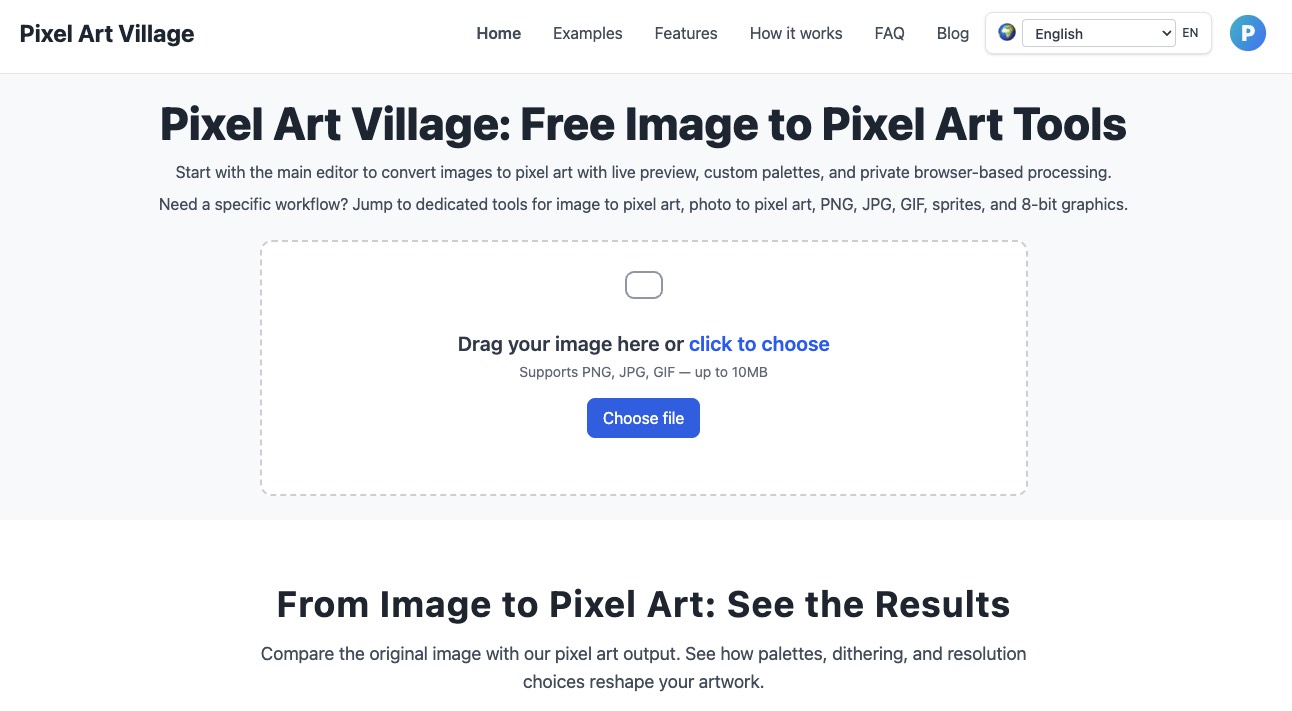
The main page funnels you into a straightforward three-step flow: upload an image, adjust pixels and palette, then download the result. Underneath that simple framing, the tool exposes several controls that matter if you’ve ever tried to clean up messy pixel conversions.
You start by dragging in or choosing a PNG, JPG, GIF, or WEBP. There are no dimension limits mentioned, and the copy explicitly notes that you can work with “anything from small icons to large reference images” and then scale the export as needed. That makes it useful both for quick sprite experiments and for downsampling big reference images into something more manageable.
Once the file is loaded, the editor shows a side-by-side Before and After view, so you can see how each adjustment affects the result in real time. This is particularly helpful when you’re experimenting with palette changes or dithering settings: you’re not guessing what changed; you’re watching the original and the pixelated version together.
From there, you work with a set of controls that cover the most important levers for pixel art conversion:
- Custom palettes: You can switch between built-in palettes or define your own to match a specific retro system, game project, or house style.
- Pixel and image adjustments: The tool exposes pixel size along with brightness, contrast, saturation, and dithering, with live preview.
- Cleanup and export: The focus is on exporting a “clean image result” suitable for sprites, icons, UI elements, or retro artwork, in PNG, JPEG, or WebP format.
The overall interaction is designed for quick iteration. You nudge a slider or change a palette and immediately see if the image becomes more readable or too noisy. That feedback loop is central to how people actually work with pixel art, and the product leans into it.
Privacy-first, browser-based processing
One of Pixel Art Village’s stronger differentiators is how clearly it leans into client-side processing. The FAQ and feature copy reiterate that all processing happens in the browser and that images are not uploaded to a server unless you choose to share them. For many artists and teams working with unreleased game assets or brand visuals, this is more than a nice-to-have.
The fact that the tool is entirely browser-based also lowers the friction to trying it. There’s no installer, no signup gate, and no explicit limits on usage. You just open the page, drop in an image, and start experimenting.
Dedicated workflows for different image types
Beyond the main “Image to pixel art converter,” Pixel Art Village offers several more specialized routes, each with its own landing page:
- Photo pixel converter – tuned for turning photographs into more readable, retro-style pixel versions.
- Photo to sprite converter – aimed at generating smaller, game-ready sprites with simplified shapes and stricter color limits.
- PNG pixel converter – focused on PNG inputs, transparency, and crisp source artwork where clean edges matter.
- GIF pixel converter – for handling GIF sources within a GIF-to-pixel workflow.
In practice, these look like entry points into the same editor with different defaults and framing. The specialization is still useful, though: a user arriving with a photo has slightly different needs than someone cleaning up pixel edges on a UI icon, and the product acknowledges that.
This structure also suggests where Pixel Art Village sees its niche: not as a general “image editor” but as a family of conversion tools for pixel-centric workflows.
Who Pixel Art Village is best for
From the copy and feature choices, a few user groups stand out:
- Indie game developers and sprite artists who want to quickly convert reference art or photos into workable pixel bases.
- Designers creating icons, UI elements, or retro-style graphics who need control over pixel density and palette.
- Hobbyists exploring pixel art without wanting to learn a full graphics suite upfront.
- Anyone who cares about local processing and doesn’t want to upload assets to a remote server.
Because the tool does not rely on AI generation, it’s better suited to people who want deterministic, controllable results based on an existing source image, rather than “prompt and hope” workflows. You keep direct control of the source, palette, and pixel settings.
Practical use cases
The site outlines several concrete ways to use the converter, and it’s easy to imagine a few more grounded scenarios:
- Turning a character sketch or 3D render into a pixel reference, then cleaning it up manually in a separate editor.
- Taking a high-resolution logo or icon and reducing it to a crisp, low-resolution version for a retro interface or HUD.
- Converting landscape photos into stylized backgrounds for visual novels or platformers while maintaining readability.
- Generating placeholder sprites from photos for early game prototypes, then refining them into final art later.
- Creating quick retro avatars or profile images from portraits using the photo-specific workflow.
In all of these, the live side-by-side preview and palette control matter more than one-click filters. The user is encouraged to adjust and judge the result rather than accept a black-box transformation.
Strengths and limitations
Pixel Art Village’s strengths are tightly aligned with its narrow focus:
The experience is deliberately simple: upload, adjust, export. There’s no multi-pane interface with layers, brushes, or timelines competing for attention. That makes it accessible for beginners and convenient for experienced users who just want a fast conversion stage in a larger pipeline.
The combination of custom palettes, adjustable pixel size, and dithering controls gives you meaningful influence over the final look. Being able to match a game’s existing color scheme or a particular console aesthetic is often what separates usable pixel assets from generic filters.
Privacy is another standout: processing in the browser and avoiding uploads removes a common friction point, especially for commercial or unreleased work.
There are, however, some implicit limitations based on what the site does not promise. This is not a full-featured pixel editor: you’re not drawing sprites from scratch, animating them, or managing tilemaps here. There’s no mention of layers, onion-skinning, or export formats tailored to specific game engines. The focus is strictly on image-to-pixel conversion and export as standard image files.
The product also explicitly states that it is not an AI pixel art generator. For some users that’s a positive—more control, more predictability. For others looking for generative capabilities or text-to-pixel workflows, this will not be the right fit on its own.
Finally, while the copy highlights that the editor is “easy for everyone” and built for quick iteration, there’s still a degree of taste involved. Getting “cleaner pixel art results” depends on starting with a clear source image and being thoughtful about reducing detail, choosing pixel sizes, and limiting colors. The tool provides the controls, but it doesn’t make those decisions for you.
Where Pixel Art Village fits in a pixel art workflow
Pixel Art Village sits comfortably in the early-to-mid stage of many pixel art pipelines. You might use it to rough in a look from photos or high-res assets, then hand the result off to Aseprite, Photoshop, or another editor for final polish and manual cleanup. It can also stand alone for simpler tasks: generating retro avatars, basic sprites, or low-res icon variants without the overhead of heavy software.
With its free, browser-based model, it’s also well-suited as a quick diagnostic or experimentation tool. Dropping different source images in and testing palettes and resolutions can help you understand what will or won’t translate well into pixel art before you commit time to manual drawing.
Overall, Pixel Art Village is less about spectacle and more about giving you a small, focused set of controls to get from “regular image” to “usable pixel artwork” while keeping everything on your device. For artists and developers who value that combination of control, privacy, and low friction, it’s a practical addition to the toolkit.