

Kling 4.0
Discover Kling 4.0, an AI video generator that turns text prompts or images into 5–30 second HD or 4K scenes with optional audio, perfect for product reveals, social clips, and story development.
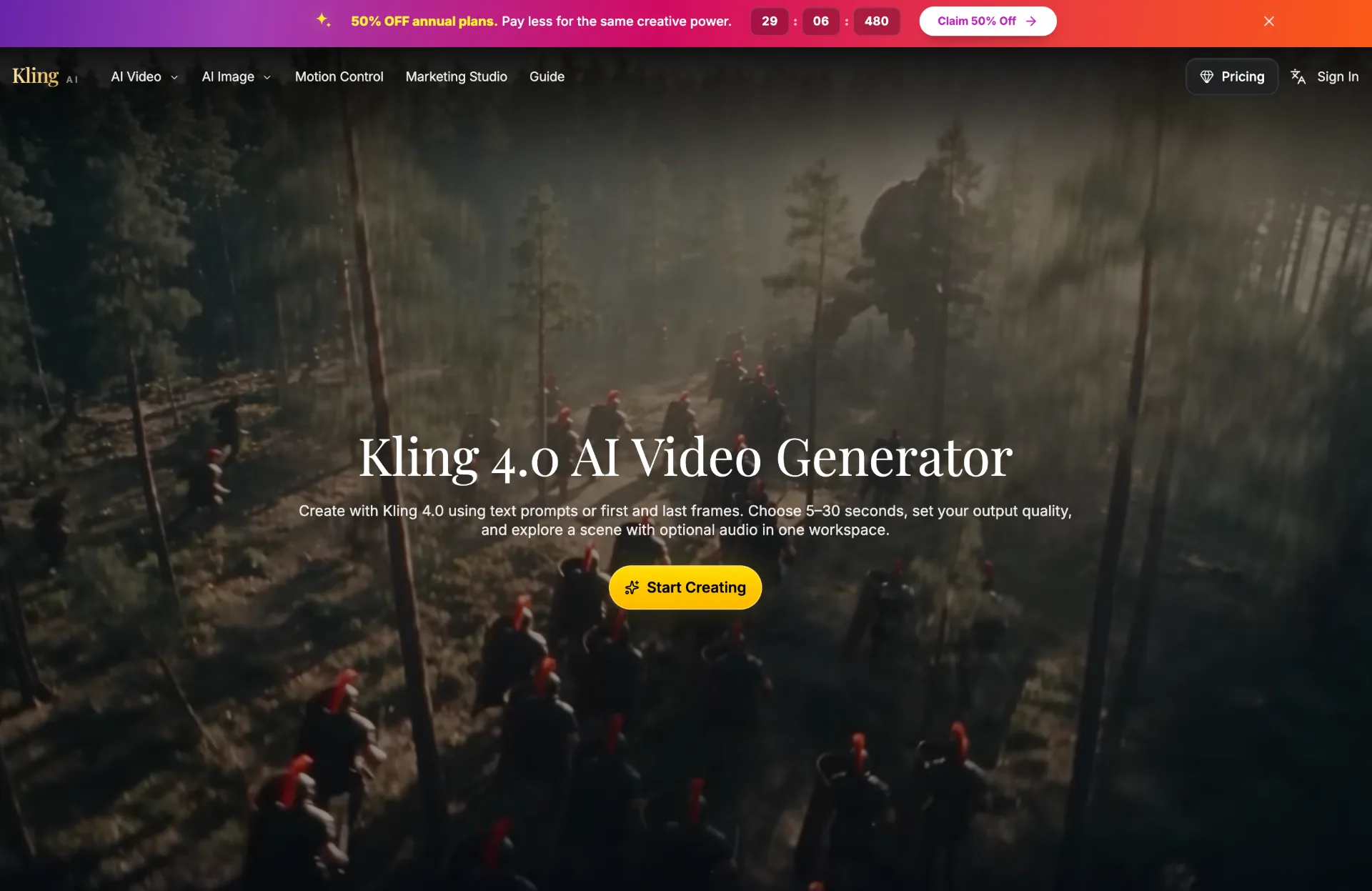
What is Kling 4.0
Kling 4.0 is an AI video generator that transforms written prompts or still images into short, polished video clips. Within a single workspace, you can define a scene, choose duration and resolution, optionally add audio, and quickly preview motion concepts before full production.
How to use Kling 4.0
-
Open the Kling 4.0 workspace
Visit the Kling AI platform and select the Kling 4.0 model. Enter the dedicated Kling 4.0 workspace where you can see input options, timing, resolution, audio controls, and the output panel. -
Choose your input type: text or image
Decide whether to start from a written idea or a visual reference.- For text to video, prepare a concise prompt describing subject, action, and setting.
- For image to video, upload a clear first frame that represents the initial composition.
-
Add starting and optional ending frames (image workflows)
When using image input, upload your starting frame in PNG, JPG, JPEG, or WEBP format.
Optionally, add a last frame to guide the final composition so Kling 4.0 understands both the opening and closing look of the shot. -
Write a clear Kling 4.0 prompt
In the prompt field (up to 30,000 characters), describe:- The main subject and what they or it is doing.
- The environment, mood, and lighting.
- The camera behavior (e.g., tracking shot, reveal, zoom, change in perspective).
Be specific but focused on one visual goal per clip to get clean, readable results.
-
Set duration and format
Choose an explicit length between 5 and 30 seconds.
Select your desired resolution from 720p, 1080p, or 4K, and pick the right format/aspect ratio for your target platform.
Review the displayed credit estimate, noting that higher resolutions and longer clips consume more credits, and that 4K output requires an eligible annual plan. -
Control audio settings
Decide whether the clip should include AI‑generated audio.- Turn audio off for assets that will use an existing soundtrack or for silent design studies.
- Turn audio on if you want rough dialogue, ambient sound, or atmosphere to explore the feel of the scene.
Describe audible events in your prompt if you enable sound.
-
Generate the video
Confirm your settings and click “Generate Video.”
Kling 4.0 will process your request using the chosen model configuration, timing, resolution, and audio preference, then display the result in the output panel. -
Review and refine the result
Play back the generated clip to evaluate framing, motion, timing, and sound.
Compare it against your original brief and check critical details such as product labels, proportions, and branding if applicable.
Adjust the prompt, duration, or camera description one step at a time for more precise control. -
Iterate with focused clips
For complex sequences, break ideas into multiple 5–30 second clips rather than one overcrowded shot.
Use separate generations for reveals, transitions, or changes in perspective, then decide which direction is worth further development. -
Save, organize, and download
Access “My Creations” to revisit past generations, prompts, and settings.
Download selected clips for editing or sharing, and keep successful prompt versions as templates for future projects.
Kling 4.0's use case
-
Product concept and campaign reveals
Present a single product with a clear angle, smooth camera move, and controlled lighting to evaluate packaging, branding, and overall visual impact before a full shoot. -
Social media openings and hooks
Design short, attention‑grabbing opening moments optimized for mobile formats, with one dominant action that remains easy to follow on small screens. -
Story and scene development
Explore key scenes from scripts or narrative ideas, testing framing, pacing, and camera movement to decide which direction deserves further production resources. -
Lighting and composition studies
Experiment with different lighting setups, color moods, and compositions as “scene studies” to refine the visual language of a project. -
Pitch decks and creative proposals
Generate quick motion references to communicate ideas to clients or teammates, helping stakeholders visualize concepts before committing to live‑action or full 3D production.
Benefits of Kling 4.0
-
Unified, creator‑friendly workspace
Text prompts, image guidance, timing, resolution, audio, and previews all live in one interface, reducing friction when iterating on visual ideas. -
Flexible input options
Support for both text and image input—plus optional end frames—lets you start from a rough idea or a detailed reference and still maintain strong creative control. -
Precise control over timing and quality
Explicit duration controls (5–30 seconds) and multiple resolution options (720p, 1080p, 4K) help align each clip with its intended platform and production needs. -
Optional integrated audio
Built‑in audio generation makes it possible to explore dialogue and atmosphere in context, while a silent mode keeps things clean for later sound design. -
Efficient iteration and history
The “My Creations” library stores past generations and prompts so you can revisit, refine, and reuse successful scenes without starting from scratch.
Pros
- Supports both text‑to‑video and image‑to‑video creation in a single, coherent workspace.
- Offers explicit duration and resolution choices, including 4K, to match different publishing needs.
- Provides optional audio generation to explore full audiovisual concepts quickly.
- Encourages focused, single‑goal clips that are easy to iterate and refine.
- Includes a history of creations and prompts for organized, repeatable workflows.
Cons
- 4K output is limited to users who meet the existing annual‑plan requirement.
- Credit‑based generation means higher resolutions and longer clips consume more resources.
- Complex narratives often need multiple separate clips rather than a single continuous video.
- Generated results may not perfectly reproduce every fine detail, especially in intricate designs.
- Requires careful prompt crafting and iteration to reach highly specific or brand‑critical outcomes.
Help more people discover your product.
Submit to SubmitoMore to discover
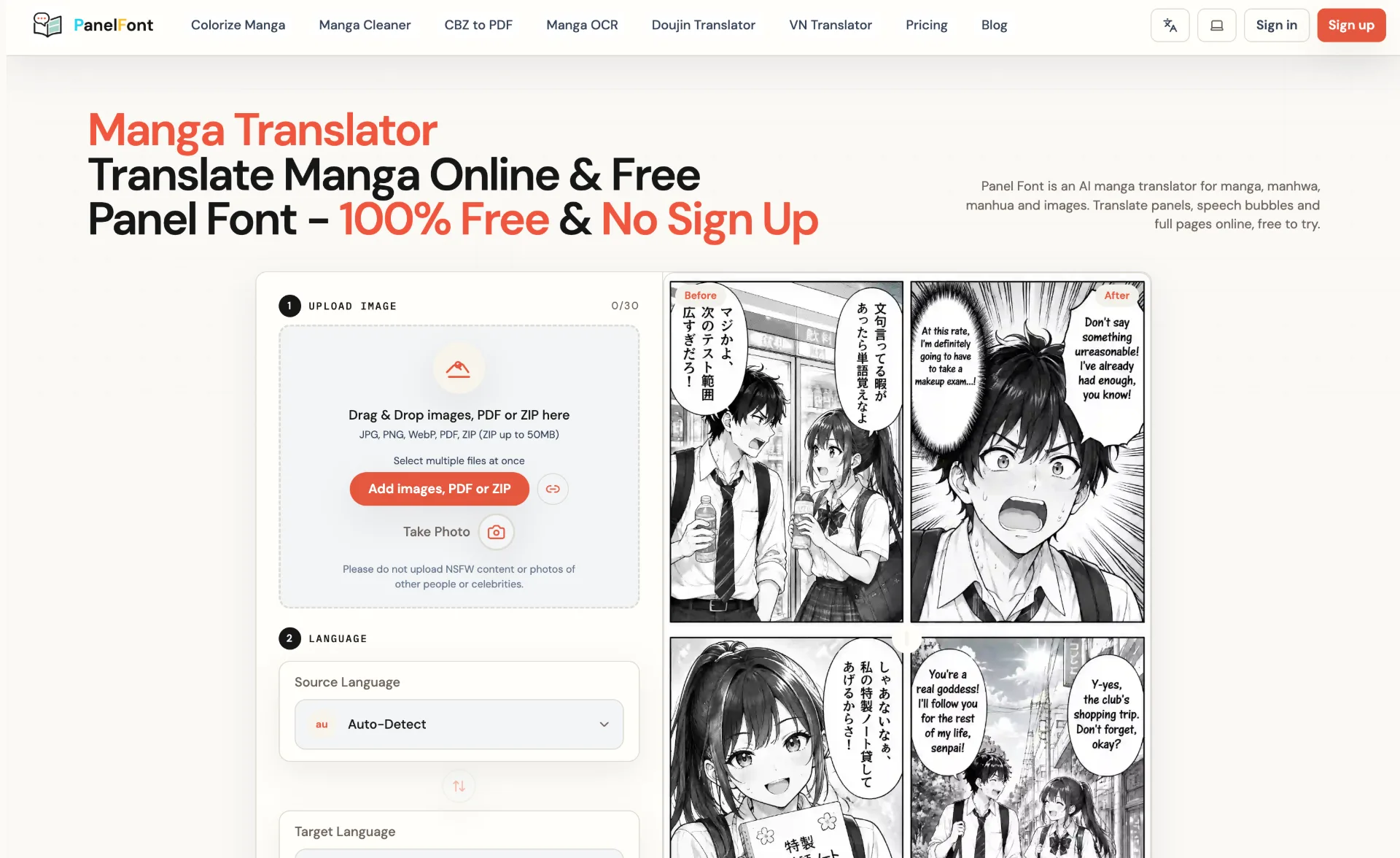
Panel Font
Panel Font is an AI-powered manga translator that converts manga, manhwa, manhua and images into over 100 languages in your browser, preserving panels, speech bubbles and artwork with smart typesetting and batch processing.
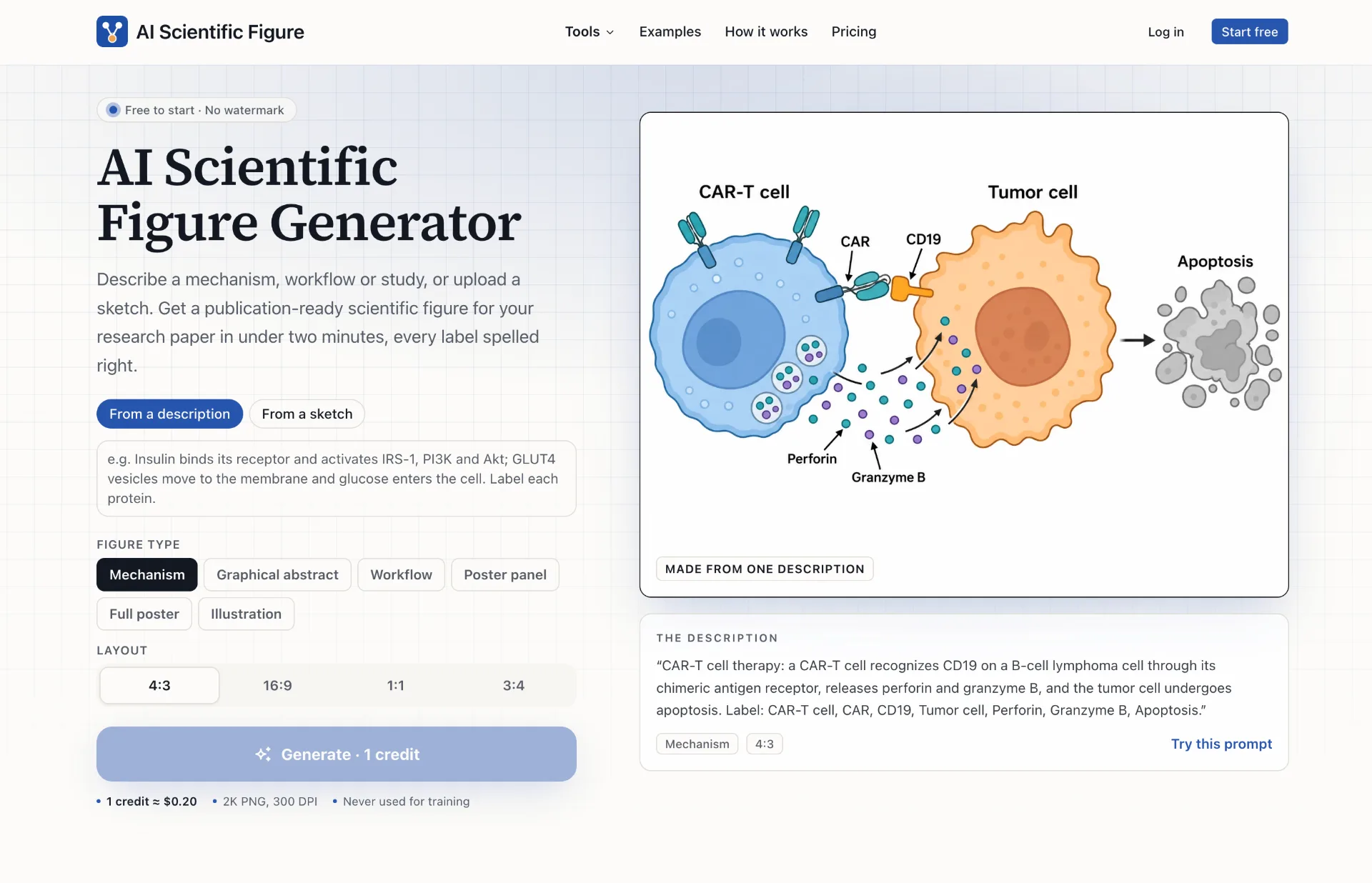
AI Scientific Figure Generator
AI Scientific Figure turns your descriptions, sketches or abstracts into clean, publication-ready scientific figures, graphical abstracts and posters in minutes, with accurate labels and layouts sized for journals, slides and posters.
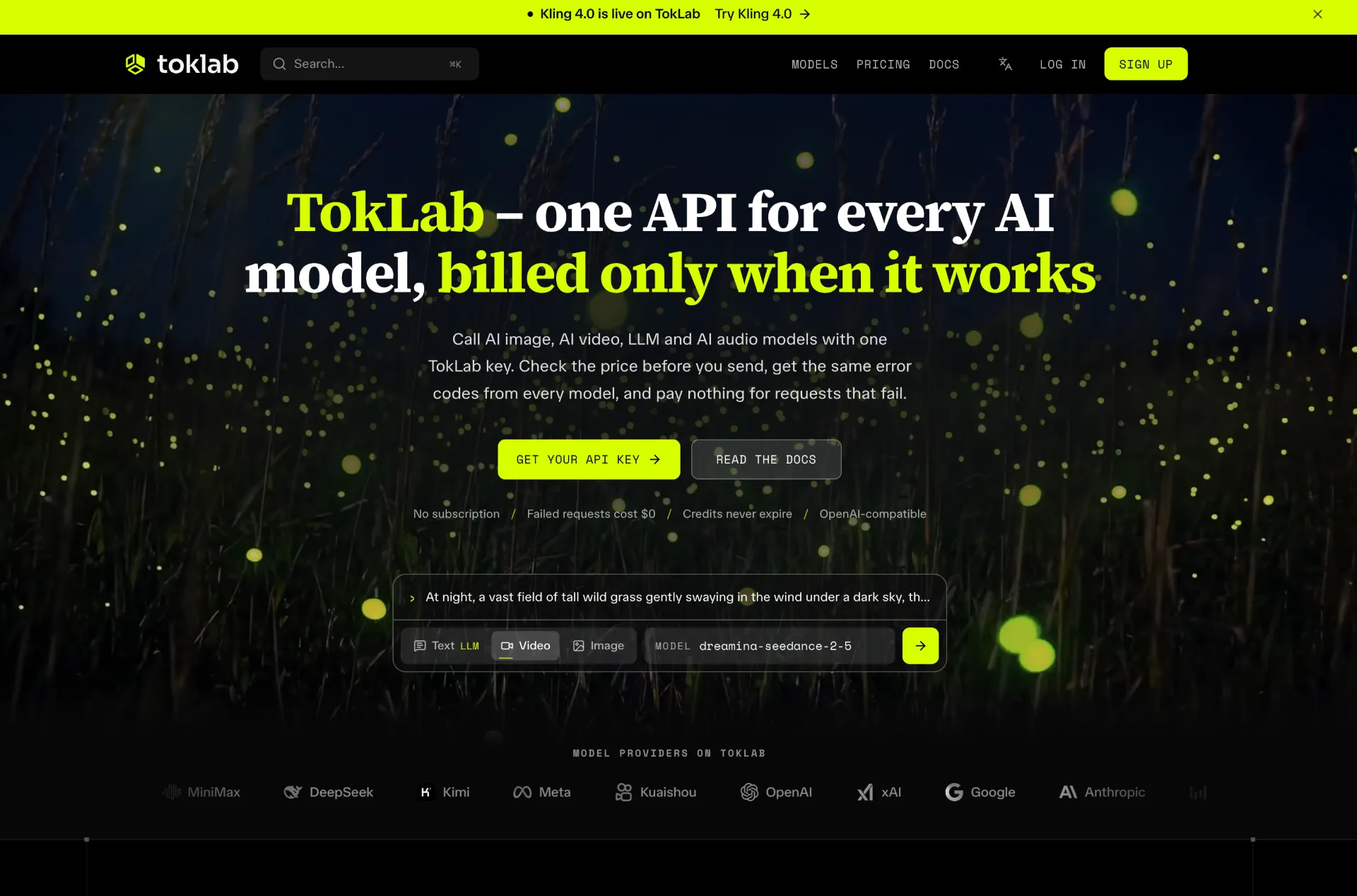
TokLab
TokLab lets you call leading AI image, video, LLM and audio models through one API key and base URL, see live prices before every request, and only pay for successful runs with credits that never expire.